
Best Lyric Video Creator for TikTok: 7 Tools That Make Rap Verses Hit on Screen
A rap verse moves fast. On TikTok it moves faster, because the viewer gives a clip a second or two before the thumb swipes on. If the words on screen are wrong, late or buried under the like button, the bar that should have stopped the scroll just slides past. A lyric video puts the writing in front of people listening with the sound low, or not at all.
The hard part is not finding a tool. It is finding one that copes with dense bars, ad-libs, slang and stage names, then lets you fix what it gets wrong before the clip goes out. Below are seven tools for independent rappers and producers, ranked on how they handle rap vocals, how easy corrections are, how readable the result is at TikTok speed, and how fast a clip gets from track to drafts.
1. Neural Frames: Best Overall for Scene-Based Lyric Videos
Most lyric tools lay captions over a background. Neural Frames builds the background around the words. Its AI lyric video maker takes your song as an MP3, WAV or FLAC file, extracts the lyrics automatically, and then generates scenes where the words live inside the picture: a line sprayed on a wall, a hook on a street sign, a bar burning across a skyline.
Before anything renders, you review the extracted lyrics and correct the words the transcription misheard, which matters on a verse full of slang, names and doubled vocals. The lyric editor also lets you play each timestamped line and adjust when it comes in. Then you pick a visual style, look over the storyboard, preview the scenes, and refine the ones that miss before the final render. If a scene does not land, you can regenerate it rather than starting the whole video again.
The result reads like a short film rather than a caption track, and for a rapper whose lyrics carry the concept, that is the point. You can build a full-length lyric video for YouTube or cut short social versions, and the output is export-ready for TikTok, YouTube and Reels.
The honest trade-off is precision. Because the words are generated inside the images, this is not a karaoke or subtitle tool: there is no word-by-word highlighting, and generated text can need a correction or a second pass to read cleanly. Artists who want strict sing-along timing on every syllable should pair it with a caption editor from further down this list. For a hook or verse where the words are the art, though, this approach gives a clip that looks like nothing else in the feed.
2. CapCut: Best for TikTok-First Mobile Editing
In the CapCut mobile app you open a project, tap Text on the bottom toolbar, and look for Auto Lyrics, which CapCut says may appear as Auto Captions depending on your region. The app listens to the vocal and lays the words on the timeline, so you can move straight from a rough cut to a captioned clip.
From there the fixes are hands-on. You tap a caption, rewrite the word the engine misheard, and nudge its timing so the punchline lands on the snare. Text styles and effects sit in the same panel, which keeps the whole job on your phone.
There are limits worth knowing before release day. CapCut’s own help pages state that Auto Lyrics is supported only on the mobile app, not on CapCut Online or the desktop app. The feature also needs a clear vocal: it will not appear if the audio is instrumental, silent or too noisy, and it may be unavailable in some countries. For rap mixes with heavy 808s and stacked ad-libs, check every line before you post, because a fast auto-transcript is a first draft, not a final one.
Choose CapCut when speed and staying inside the TikTok workflow matter most.
3. VEED: Best for Reviewing and Correcting Lyrics
VEED is built around the transcript. Upload the track or the video, open the Subtitles tab, choose the language and click Auto-subtitle. The editor then shows every line as editable text, and words the engine was not sure about are highlighted in orange as low-confidence words. On a rap verse that is exactly where the slang, names and fast doubles tend to be, so you can jump straight to the problem spots instead of proofreading line by line.
Corrections stay simple. You click into a line and type, and you can add a word to the dictionary so the tool spells your stage name or crew name correctly in later transcriptions. A timing view lets you change when each subtitle appears, and you can detach a single subtitle and move it elsewhere on the canvas, useful when a line would otherwise sit under TikTok’s buttons.
Styling is detailed. Presets get you started, and you can change font, size, colour, letter casing and line height, set the number of lines, and add outline, shadow, a background box and animation. Auto Highlight emphasises key words, and Auto Emoji adds emojis based on each line’s context.
Pick VEED when wording accuracy matters more than flashy visuals.
4. Rotor Videos: Best for Real-Footage Music Visuals
Rotor, part of LyricFind, takes a different route from the AI scene builders: it edits real footage to your track. Its library holds over 17 million video clips, and over 150 professionally designed video styles set the look and the pace of the cut. The engine analyses your music and the clips you choose, then builds a custom-cut video in minutes.
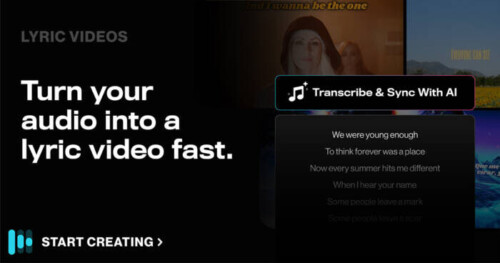
For lyric videos, Rotor added a Transcribe and Sync with AI tool. You upload the song, start the transcription, and the lyrics come back synced to the audio. Under the Timings tab you can tweak the words and timestamps, which is where you fix the ad-libs and slang an AI will miss. Then you choose fonts, try lyric animations, and save the look as a template so the next single in the campaign matches. When the clip is done, Rotor renders it for YouTube, TikTok, Instagram Reels and Spotify Canvas.
The trade-off is control. Rotor is fast because it makes the editing decisions, and the visuals come from stock footage rather than your own world. Choose it when you want real scenery behind readable lyrics and would rather promote the record than edit it.
5. Kapwing: Best for Collaborative Browser Editing
Kapwing runs in a browser, so a rapper, a manager and an editor can all work on the same lyric clip without passing files around. Its collaboration workspace adds shared brand assets and real-time comments, which helps when a label or a featured artist wants sign-off before the clip goes live.
Captions come from Magic Subtitles, which auto-generates subtitles and a complete transcript you can edit in one go. If you already have official lyrics, you can upload an SRT or VTT file instead, or type the subtitles manually. The Animation tab controls the look of the captions and lets you remove word-by-word highlighting if you want the whole line on screen at once.
Kapwing is also practical about TikTok’s layout. Start from the 9:16 TikTok preset, then turn on the Safe Zones filter, which overlays where the username, caption and side buttons will sit in the published video. Keep your lyrics outside those areas and nothing important gets covered.
Kapwing stops at captions and motion over footage; it will not generate scenes around your words. Pick it when shared access and a repeatable look matter most.
6. Adobe Express: Best for Polished Template-Based Clips
Adobe Express suits artists who want a clean, designed look without a full editing suite. Its Caption video feature generates captions for your video and lets you review them along the timeline. You can change the text of any generated caption, then adjust the style, font, colours and shape of the captions to match the cover art.
Placement is direct. You drag the captions to reposition them anywhere on the canvas and drag the resize handles to change their size, which makes it easy to keep a line clear of TikTok’s interface.
The limit is depth. Adobe Express handles clean captions and design well, but it is not built for kinetic word-by-word animation or AI-generated scenes.

7. Descript: Best for Editing Lyrics Like a Document
Descript treats video like a text document: you transcribe the track and edit the words on the page. For lyric videos, that makes it a strong cleanup tool. You can use its automatic transcription or paste in an existing transcript, which is the fastest fix when you already have the official lyrics and do not want to correct a machine’s guess at every bar.
Once the words are right, Descript turns them into captions. You can adjust font, colour, positioning and background, so the text stays legible over a performance clip or studio footage.
Descript is a general video and podcast editor, so it does not offer music-specific visuals or scene generation. Choose it when you are already cutting a performance clip there.
How to Choose the Best Lyric Video Creator for TikTok
1. Nail the Transcript Before You Touch Fonts
Auto-transcription still trips over slang, ad-libs, doubled vocals and fast flows. The real test is not how good the first draft is but how quickly you can fix it. Look for tools that flag uncertain words, let you edit a line in place, and accept your own lyrics or a subtitle file. Lock the words first; design comes after.
2. Keep It Readable Inside TikTok’s Layout
TikTok plays clips full screen in a vertical 9:16 frame, and its buttons, username and caption take up part of that space. Keep each lyric block short, one phrase and no more than two lines, and keep it away from the right edge and the bottom of the frame. Use a safe-zone overlay where your editor offers one, and preview the clip on a real phone before posting. High contrast wins: light text on dark footage, or a solid outline or background box, stays readable at a glance.
3. Make the Visuals Serve the Record, Not the Other Way Around
Pick the story first, then the engine. A verse built on dark, cinematic imagery belongs in a scene-based generator like Neural Frames, where the words become part of the picture. A street-diary track feels truer over real footage from Rotor. A meme-ready hook can live in clean, branded typography from CapCut, VEED or Kapwing. Look at how established artists handle it: Cardi B brought “Ah Ha” to life with a new music video rather than leaning on captions alone. Decide early, because switching styles halfway through a rollout costs hours of re-editing. When the look, the lyric placement and the timing push the same mood, fans remember both the line and the image.
4. Measure Speed From Track to Draft, Not Just Render Time
A quick render means little if you then need three exports and a file transfer. Time the whole route: import the track, fix the lyrics, style the text, export, and land the clip in a private TikTok draft. Fewer hand-offs mean faster reactions when a song starts moving.
Conclusion
The best lyric video creator for TikTok is the one that gets your exact words on screen, readable, on beat and on brand, before the moment passes. Use a caption-first tool when accuracy and speed are everything, real footage when the song needs a place, and scene-based visuals when the lyrics are the concept. Get the words right, keep them clear of the interface, and let the verse do the work.
© 2026, C Wood. All rights reserved.